Showing posts with label News. Show all posts

Thursday, May 26, 2011

ASUS Eee Pad Transformer Tablet

Asus launch its new line of tablet, the ASUS Eee Pad Transformer Tablet on 16G and 32G Version. See below for specs.


source: Yugatech

Asus Eee Pad Transformer TF101
10.1″ display @ 1280×800 pixels
1.0GHz NVidia Tegra 2 processor
1GB memory
16GB and 32GB internal storage
1.2 MP front camera
5MP rear camera
micro SD card reader
micro HDMI port
G-Sensor
Light Sensor
Gyroscope
E-Compass
GPS
Android 3.0 Honeycomb


The company claims that the battery life for this tablet would last 9.5 hours with its built-in Li-Po battery and 16 hours while docked with the removable keyboard.

This should be out in the market soon with the SRP of Php 29,990.(including docking station and keyboard)

source: Yugatech

Monday, May 23, 2011

Google announced its first commercial Chromebook laptops


Google announced its first Chrome-based notebooks at its Google I/O conference here.credit: CNET/James Martin


SAN FRANCISCO--Google announced its first commercial Chromebook laptops Wednesday at its annual Google I/O conference here. Samsung and Acer will each be offering Chromebook laptops starting June 15. The Samsung Chromebook will cost $429 for the Wi-Fi only version and $499 for the 3G version. Acer's Wi-Fi only Chromebook will cost $349.


The devices will be available for sale in the U.S. from Amazon and Best Buy. Google will also be selling these Chromebooks internationally in the U.K., France, Germany, Spain, the Netherlands, and Italy. Specs for both machines are available here. Samsung is hosting an event later tonight where it will provide more details on the new Chromebook. Acer will also be providing details about its Chromebook. Some of the benefits of the Chromebooks are that they have all-day battery life and built-in Net connectivity. With Verizon Wireless, the Chromebooks will offer pay-as-you-go pricing, with monthly or daily passes for 3G connectivity. The Chromebooks get updates every few weeks, just like Chrome. Users don't have to worry about installing patches. The new devices have dual-core processors from Intel.


Google also announced enterprise pricing: Businesses can get Chromebooks, a Web console for management, support, warranty, replacements if something breaks, and hardware auto-updates for $28 per user per month. And Google will be offering schools a special price on Chromebooks. It will charge $20 a month per user, including hardware, administrative support, hardware upgrades, and warranty. Michael Gartnenberg, an analyst with Gartner, said the fact that the browser is limited to Chrome might be a factor, considering that competing products offer more capability and flexibility at roughly comparable pricing. "It's pretty interesting," he said. "But at these prices, will consumers buy it? At $499, that gets you a pretty capable Netbook or even an iPad."


Google will offer all attendees at Google I/O free Chromebooks to test.


Official Website: http://www.google.com/chromebook/


Read more: http://news.cnet.com/8301-30686_3-20061896-266.html#ixzz1N8SwEIut

source : Cnet.com


Two die in explosion at Foxconn iPad plant

An explosion at a Foxconn factory near Chengdu, China, has killed at least two people and injured 16, according to a statement sent from the company, which reportedly manufactures Apple iPads at the site.


The Wall Street Journal reports that the explosion occurred Friday night near the southwestern China facility, halting production.

In a statement initially sent to Gizmodo, Foxconn says the situation is now under control and the production hold will continue while police investigate.


Here's the full statement, which Foxconn sent to CNET this afternoon:
 We can confirm that at approximately 7 p.m. on May 20, there was an explosion at our Chengdu campus. At this point, we can also confirm that there were two fatalities with injuries to 16 other employees. We are working with medical officials to provide treatment to the injured employees and we are working with government and law enforcement officials to contact the families of all employees affected by this tragedy.

The situation has been brought under control by the fire department and the cause of this explosion is being investigated by local police officials. Foxconn is cooperating fully with that investigation. Production has been suspended at the site of the explosion until the completion of the investigation. The safety of our employees is our highest priority and we will do whatever is required to determine and address the cause of this tragic accident.


Apple did not immediately return CNET's request for comment, but it did provide the following statement to AllThingsD. "We are deeply saddened by the tragedy at Foxconn's plant in Chengdu, and our hearts go out to the victims and their families. We are working closely with Foxconn to understand what caused this terrible event."


Local government officials referred to the factory as Foxconn's "polishing plant" and little solid information is known about the cause of the explosion--one English-language Chinese news site described it as "caused by a super-light dust explosion," and rumors circulating around Chengdu and through the media also allude to lightning strikes and problems with the ventilation system in the building.

Chinese TV shows clouds of dark smoke emanating from the building; the BBC reports that security guards told evacuees from the factory that the smoke coming from the facility was toxic.


Early reports after the explosion warned that the building's walls had been shattered and its collapse may be imminent, but it doesn't appear that has happened. Details on this story are still emerging and sketchy at best, but the explosion and two deaths appear matters of fact.


Foxconn is the same manufacturer that has come under fire in the past for working conditions believed to have led to a rash of worker suicides. Foxconn did not immediately respond to a request for confirmation and more details on the explosion.


Read more: http://news.cnet.com/two-die-in-explosion-at-foxconn-ipad-plant/8301-17938_105-20064773-1.html#ixzz1N7ty0uG5

Source: Cnet


Friday, February 25, 2011

Intel Thunderbolt

Intel unveils Thunderbolt data transfer tech

Intel's new Thunderbolt logo.


Intel this morning outlined the specifics of its Thunderbolt data connection technology.

Formerly called Light Peak, the current copper-based generation of Thunderbolt boasts 10Gbps data transfer speeds between computers and devices--that is, twice the speed of current USB 3.0 throughput. Future iterations of the specification are expected to move from copper wire to a fiber-optic connection, which Intel has said could one day allow for throughput rates up to 100Gbps.

One of Intel's goals for Thunderbolt is to simplify the various connections going from PCs and connected devices. Thunderbolt can transmit both raw data and audio-video information simultaneously, using existing DisplayPort and PCI-Express data protocols. As each Thunderbolt port has two data transmission channels, the technology is also bidirectional, meaning that it can both transmit and receive data. According to Intel, each port will be able to send and receive data simultaneously, at full 10Gbps bandwidth in both directions.

This diagram explains Thunderbolt's simultaneous data and video throughput capability.

This diagram illustrates Thunderbolt's simultaneous data and video throughput capability.

(Credit: Intel)

By using the existing DisplayPort and PCI-Express data protocols, Thunderbolt will affect a wide number of peripheral devices, ranging from desktops and laptops, as well as monitors, external hard drives, cell phones, and tablets, among others. Apple's new MacBook Pro, also announced this morning, is the first Thunderbolt-equipped computer. Intel also announced that Aja, Apogee, Avid, Blackmagic, LaCie, Promise, and Western Digital will all have Thunderbolt-based products, although the technology is certain to spread to every major computer and peripheral vendor before long.

Intel will be hosting a formal press conference this morning at 10 a.m. PT/1 p.m. ET to announce Thunderbolt and demonstrate Thunderbolt-equipped products. CNET's Josh Lowensohn and Dong Ngo will be live-blogging the event, which you can follow at this link.


Source: Cnet.Com

Thursday, February 24, 2011

Get ready for Windows 7 SP1 - Hits Windows Update on February 22nd

Microsoft has finished work on Windows 7 Service Pack 1 (SP1) and will begin pushing the update to systems on February 22nd via Windows Update.

Microsoft has today hit the RTM (Release to Manufacturing) stage for both Windows 7 SP1 and Windows Server 2008 R2 SP1 and has started shipping the code to OEMs.

If you are a TechNet or MSDN subscriber you will be able to get your hands on the code from February 16th.

So what’s new:

For Windows 7, SP1 will help keep your PCs well supported by delivering ongoing updates, many of which have been made previously available through Windows Update. It also includes client-side support for RemoteFX and Dynamic Memory which are two new virtualization features enabled in Windows Server 2008 R2 SP1. Read more about those updates here from the Windows Server Team.

In my experimenting with the beta and leaked versions of SP1 for Windows 7, there’s no new cool stuff to see, no UI tweaks and no performance boosts. This is primarily a bugfix release that brings together all the patches and updates released so far.

The virtualization features however, are compelling and should help to reduce the system load and increase virtualization density on servers. Good news all round.

Kick off your day with ZDNet's daily e-mail newsletter. It's the freshest tech news and opinion, served hot. Get it.


Source: http://www.zdnet.com


Saturday, January 29, 2011

What you need to know before getting a 3TB hard disk

So you decided to spend some of your hard-earned cash to purchase another hard disk. One that can support your growing collection of movies and photos for eons to come. And what’s the largest capacity available to consumers right now? 3 terabytes! That can hold around 4500 movies (assuming a movie is 700MB in size).

western digital 3tb caviar green

But wait! Before you get excited, here are some things you need to know before getting that 3TB drive. It’s not as simple as slapping it inside your machine and connecting the necessary cables. There are some restrictions and additional stuff to be done before you can freely use a hard drive that is larger than 2.2TB.

Here are the restrictions you need to know when using drives that are larger than 2.2TB:

  • Windows XP (both 32-bit and 64-bit) doesn’t like to play with >2.2TB storage
  • 32-bit Windows Vista and Windows 7 can only support >2.2TB as secondary drives, no problem with 64-bit
  • Linux OS have no problems at all
  • Mac OS 10.5 and 10.6 won’t have any problem although it won’t work with Apple Bootcamp
  • If you wish to boot on a >2.2TB drive, you need to have a Unified Extensible Firmware Interface (UEFI) firmware on your system and a 64-bit OS

Host Bus Adapter (HBA) card required

Even if you have Windows 7 and a new system, there’s still one critical component that you need and that’s a Host Bus Adapter card. HBA cards are bundled with 2.5TB or 3TB hard drive purchases. If you’re buying a second hand drive, make sure you ask for the HBA card as well.

Host Bus Adapter

The HBA card has the following roles:

  • Avoids incompatibilities with system BIOS and 3rd party storage drivers (Intel and NVidia not capable today)
  • Ensures protection to the users existing Primary drive by not disturbing its configuration during installation
  • HBA provides UEFI support for enabling boot support for 64 bit OS when Motherboard also supports UEFI

>2.2TB Compatibility Chart

Sounds complicated? Here’s a chart I got from Western Digital (click to enlarge) to help you understand much better:

compatibilitychart

*1 Presently WD does not directly provide support for these applications. We have worked extensively with our partners and solutions may be available. HBA and RAID Controller vendors may have developed solutions for these applications.
*2 Linux solutions are available. Please consult your Operating System provider for use with Large Capacity drives.
*3 An available PCI-E slot for the HBA is required. Supported by using the native Windows Advanced Host Controller Interface (AHCI) drivers only.
*4 Apple Bootcamp is presently not supported. Support is limited to the operating system only.
*5 Boot support requires a system with UEFI Support and a 64 bit version of the OS.
*6 Check with USB Bridge provider to verify if and how Large Drives are supported.

source: PinoyTechBlog


Tuesday, January 11, 2011

Core i5 Presents: The Chase Film

Intel has announced 29 new processors in the Intel Core i series and to help promote the mid-level Core i5 CPU, they’ve produced this short but pretty nifty little video animation film. Check out it after the jump.


The Chase Film

Source: YugaTech

Thursday, January 6, 2011

Pinguy OS

  •  

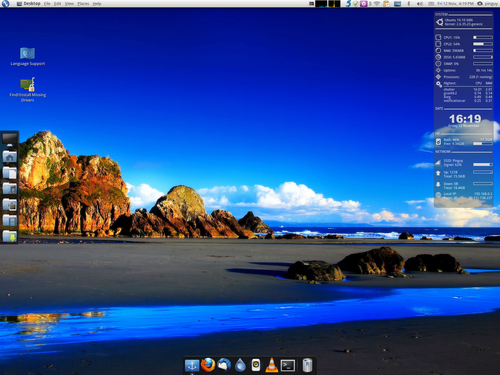
    Pinguy OS an out-of-the-box working operating system for everyone, not just geeks

    This OS is for people that have never used Linux before or for people that just want an out-of-the-box working OS without doing all the tweaks and enhancements that everyone seems to do when installing a fresh copy of Ubuntu or other Linux based Distro's.

    Download 10.10.1 i686 1.3 GB
    Download 10.10.1 x86-64 1.4 GB
    Torrent 10.10.1 i686 1.3 GB
    Torrent 10.10.1 x86-64 1.4 GB

What Is Pinguy OS?


Ubuntu is a great OS and undoubtedly the most popular and easiest Linux based Distro to use but even with its default setup and chosen programs it's still  lacking functionality and ease of use for most new users. So what I decided to do was build a Distro that looks good, could do everything most user would ever want to do and that was very simple to use.

I started out by listening to what my friends and family wanted to use their PC for and found the most user friendly programs for the task they wanted to do. After a while I got a good idea what most people use their PC for and what programs where the easiest to use. Like using Shotwell for easily uploading images to Facebook, gtkpod for putting music, photos and video on a ipod/iphone and mvPod for converting the video to a iPod friendly format.

So all the programs in Pinguy OS have been chosen because of their ease of use and functionality, I also changed every file type to open with the right program, like for some reason by default .iso are opened with Archive Manager so I changed that to Brasero Disc Burner.

As I already said apart from it being easy to use I also wanted it to be a very good looking operating system. There are now a lot of programs out there for Linux to give the OS a very smart and polished implementation, like CoverGloobus, Gloobus Preview, GNOME Do, and Docky. These programs don't just give the OS a good look and feel but they are also very useful and handy.

Pinguy OS is an optimise build of Ubuntu 10.10 Minimal CD with added repositories, tweaks and enhancements that can run as a Live DVD or be installed. It has all the added packages needed for video, music and web content e.g. flash and java, plus a few fixes as well. Like fixing the wireless problems, gwibber’s Facebook problem and flash videos in full-screen.
Everything is set-up for samba, all you need to do is right click a folder you want to share and add a password in samba using system-config-samba.
It also has a UPnP/DLNA server (pms-linux) so you can share your music, video’s etc. With a PS3, XBOX 360, Smart Phones or any other UPnP/DLNA media reader.

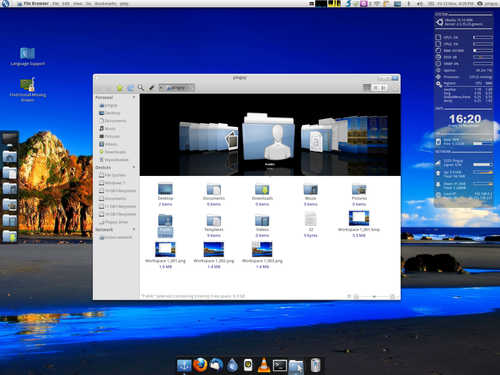
Nautilus has been replaced for Elementary-Nautilus with added plug-ins so it can get music and video art from the web. The default theme is Elementary using ttf-droid font with Docky and a custom Conky.

I have also added DVB support to Totem for anyone with a TV card that wants to watch tv on their PC but doesn't want to install a dedicated program like myth-tv.
For a full list of installed programs and repos for 10.04.1 *OLD* download this file.
If you prefer to download and install the LTS (long term support) 10.04. It can still be downloaded from here.
If you like this Distro and would like to help it improve and grow you can always donate, it doesn't matter how small the amount is, it all helps.


Source: pinguy-os

Tuesday, January 4, 2011

Chrome finishes 2010 with 10 percent share

As of December 2010, Chrome holds 10 percent of browser usage worldwide.

As of December 2010, Chrome holds 10 percent of browser usage worldwide.

(Credit: data from Net Applications; chart by Stephen Shankland/CNET)

With the steady rise in Chrome, 1 out of every 10 people surfing the Web in December used Google's browser.

Chrome's gains have come largely at the expense of Microsoft's Internet Explorer, whose usage share has been dropping for years, but there's also a ray of hope for Redmond. IE9, which embodies Microsoft's ambition to build a cutting-edge browser once again, is showing signs of real adoption with usage that grew from 0.4 percent in November to 0.5 percent in December, according to new statistics from Net Applications.

Fractions of a percent may sound insignificant, but with hundreds of millions of people using the Web, they actually represent a large number of real users. And in the current competitive market, browser makers are attuned to where the growth is occurring.

For months now, Chrome has risen. Most recently, it rose from 9.3 percent in November statistics to 10 percent in December, according to Net Applications. That's helpful for Google's ambition to speed up the Web overall; Chrome is a vehicle by which the company can explore, develop, and promote new features, such as Native Client, SPDY, WebP, and False Start, that Google hopes will speed the Web and make it a more powerful foundation for applications.

Mozilla's Firefox, the second-place browser, stayed flat at about 22.8 percent, Apple's Safari rose from 5.6 percent to 5.9 percent, and Opera was flat at about 2.2 percent. Chrome and Safari grew at the expense of IE, which dropped from 58.4 percent to 57.1 percent.

Note that because browser usage overall is increasing, even percentages that remain flat from month to month still mean a growing user base.

Microsoft can take consolation that its share losses have come from older versions of its browser. IE6, an advanced browser when released nearly a decade ago but now despised among Web developers for retarding progress on the Web, dropped from 13.7 percent in November to 13.1 percent in December. IE7 dropped from 9.5 percent to 8.8 percent.

Source: Cnet


Thursday, December 30, 2010

PQI H560 Shockproof Hard Drive


FEATURES

'Ultra protection against vibration and shock ~
in compliance with US military grade MIL-STD-810F 516.5 procedure IV (transit drop test) specific.


ISO9001 ISO14001 OHSAS18001 VCCI MIC FCC CE


                                                  windows7   Windows Medial   VCCI
source: PQI

Tuesday, December 28, 2010

Lifehacker Pack for Linux: Our List of the Best Linux Downloads

Lifehacker Pack for Linux: Our List of the Best Linux Downloads

We love Linux, and want to make it easier for others to do so, too. This first edition of the Lifehacker Pack for Linux includes our favorite apps that get things done and make your desktop great.

Linux isn't quite like Windows or Mac, as there are many, many distributions, usually running on one of two desktop systems (GNOME or KDE). We've chosen to write this list up from the perspective of a standard, GNOME-based Ubuntu user. Ubuntu is what the Lifehacker editors use, it's what most of our Linux-leaning readers use, and it's generally popular and frequently updated. Many of these apps can be downloaded and installed on other Linux systems, of course check the Download link, or search out its name in your own system's package installer.

If you are using Ubuntu, you can also install these apps by clicking the "Install in Ubuntu" link after each item. It's a link that prompts your own Ubuntu system to search out and install an app from its own repositories with your permission, of course. You may be asked on your first install to allow your browser to open up an Ubuntu app to handle the link, but go ahead and agree with it, and you'll be installing apps with one click after that. We've also placed aggregated installer links at the bottom of each section, and a mega-installer at the bottom of the post, so you can install multiple apps at once.

Note: If the packages don't appear to be installing on your system, and you're running Firefox, you may need to install a support package for Firefox 3.6 Do that by opening a terminal and entering the command sudo apt-get install apturl firefox-3.6-gnome-support.

Some other apps (Chrome and Dropbox) require a download, some are pre-installed in Ubuntu, and others may require the enabling of an extra repository or two for certain third-party apps, but we've explained how to do so in a previous Ubuntu feature (short version: open "Software Sources" from the System/Administration menu).

Now let's get straight to the goodies:

Productivity

Lifehacker Pack for Linux: Our List of the Best Linux Downloads

GNOME-Do: If you're familiar with Quicksilver, a key element of our Lifehacker Pack for Mac, you'll have a sense of why application launcher GNOME-Do is so handy and great. But GNOME-Do does much more than object-verb launching. It comes packed with a host of plug-ins that can launch chats, upload or open Google Docs, shorten a URL or send a tweet, and on and on. [Download] [Install in Ubuntu]

Lifehacker Pack for Linux: Our List of the Best Linux Downloads

OpenOffice.org or GNOME Office Suite: We are not in love with OpenOffice.org, by any means. The internet is full of places where you can read what people dislike about Sun Microsystems' open-source alternative to Microsoft's Office suite slowness, toolbar overload, a few features that are essential to certain trades. Still, for all its shortcomings, OpenOffice does get the job done in most cases, most of the time, and it's robust in ways that are hard to imagine for entirely free software. If you want a lighter, faster alternative for simply opening files and cranking out work, the offerings in the GNOME suite AbiWord, Gnumeric, and so forth will suit you fine. Or just use Google Docs or Zoho. [Download: OpenOffice, GNOME Office] [Install Gnome Office in Ubuntu]

Lifehacker Pack for Linux: Our List of the Best Linux Downloads

gedit: It's built into nearly any Linux OS that runs on GNOME, and some that don't. It's a compact but customizable text editor, one that's great for jotting down quick notes, editing system files, writing code outside a full-fledged development environment, or otherwise editing straight-up text. It can be made up with plug-ins to auto-complete, snap open files, and otherwise work like TextMate, but even on its own, it's a good tool to keep handy. [Download]

Lifehacker Pack for Linux: Our List of the Best Linux Downloads

AutoKey: Text replacement gives you the power to type five letters like kpadd and fill in a whole mess of repetitive or hard-to-remember text like "Kevin Purdy / 123 Mayfair Lane / SomeTown, NY 12345" wherever you happen to be typing. AutoKey isn't a pure equivalent of Texter for Windows or TextExpander for Mac, but it has its own features to recommend it. Users can pick a hotkey, text snippet, or tray menu shortcut for each expansion they create, and learn a rudimentary scripting language to insert customized text. Just like Linux itself, AutoKey is an open book. [Download] [Install in Ubuntu]

[Install the Productivity pack in Ubuntu] (GNOME-Do, Gnome Office, Autokey)

Internet/Communication

Lifehacker Pack for Linux: Our List of the Best Linux Downloads

Firefox/Chrome: Firefox's the default in most Linux distros, and is likely the most tested and stable on Ubuntu and other platforms. But, just as on Macs, Chrome is growing up quickly, offering a very, very fast experience on Linux, and makes strides in integrating with the OS every day. So let's call it a tie both are easy to love. [Download: Firefox, Chrome]

Lifehacker Pack for Linux: Our List of the Best Linux Downloads

Thunderbird: Most of you are using web-based mail these days, and Evolution may be deeply integrated into GNOME, but it's hard to beat Thunderbird as a desktop email client. From its support for Gmail features like archiving to its large library of add-ons, Thunderbird's got you covered no matter how you manage your email workflow. Even if you primarily use webapps for mail, you can't go wrong backing up your email through a desktop client, nor accessing it through IMAP when Gmail goes down. [Download] [Install in Ubuntu]

Lifehacker Pack for Linux: Our List of the Best Linux Downloads

Pidgin: Ubuntu has picked up Empathy as a default messaging program, and, while it's a stylish, intriguing app, it's nowhere near as convenient and fleshed out as Pidgin. Pidgin gives you total control over multiple chat accounts and your buddy list, can be used with multiple Windows or Linux PCs, and also integrates into Ubuntu's new "Me" menu. [Download] [Install in Ubuntu]

Lifehacker Pack for Linux: Our List of the Best Linux Downloads

Skype: Sure, there are a lot of different ways to video chat nowadays, but Skype is by far the most popular, what with its cross-platform availability and, frankly, media hype. But it's free, works well, and chances are your friends all have it too, so it's nice to keep around. [Download] [Install in Ubuntu]

Lifehacker Pack for Linux: Our List of the Best Linux Downloads

Transmission: Transmission is the default BitTorrent client in Ubuntu, and with good reason. It's not quite as feature-rich as the Mac version, but it's super lightweight, fast, and still has a lot of convenient features like automatic port forwarding, speed limiting, scheduling, and a handy web UI for when you aren't near your computer (or, if you're more a fan of SSH, command-line support). [Download]

[Install the Internet/Communication pack in Ubuntu] (Thunderbird, Pidgin, Skype)

Media

Lifehacker Pack for Linux: Our List of the Best Linux Downloads

Flash Player: It's never run quite as well on Linux as on Windows or Mac (and it isn't so great on those either), but until HTML5 really comes to fruition, it's necessary for streaming video or using a lot of interactive web pages. Of course, you can keep its resource hogging at bay when necessary with FlashBlock for Chrome and FlashBlock for Firefox. [Download] [Install in Ubuntu]

Lifehacker Pack for Linux: Our List of the Best Linux Downloads

VLC: Media player VLC was voted the best desktop media player by you guys, and with good reason not only does it play pretty much any file you throw at it, but it can rip DVDs, stream media to other computers, and even play YouTube videos (and much more). It's a must-have application for anyone that watches video on their computer. [Download] [Install in Ubuntu]

Lifehacker Pack for Linux: Our List of the Best Linux Downloads

Handbrake: It doesn't matter whether you're throwing some video on your mobile device or ripping that Blu-Ray disc to your media center, open source Handbrake is one of the best video encoders around. Unfortunately, the latest version of Handbrake doesn't work with the new version of GNOME, and the Handbrake team has yet to catch up, but you can install some (likely less stable) snapshots using this method. [Main Site]

Lifehacker Pack for Linux: Our List of the Best Linux Downloads

GIMP: Ubuntu recently dropped GIMP, the open-source, full-fledged image editor from its default installations, due to its size and complexity. The thinking went that most casual photo edits could be made with the F-Spot photo manager. Well, kind-of-sort-of-not-really. GIMP may have a dense number of options, but F-Spot's photo handling and somewhat sparse options make it less than ideal for actual editing cropping, lasso-grabbing, drop-shadowing, and the like. GIMP has its flaws, but it gets regular improvements, and you'll be glad it's there when you need it. [Download] [Install in Ubuntu]

Lifehacker Pack for Linux: Our List of the Best Linux Downloads

Rhythmbox: Music players are a very personal thing that's why there are so many, after all. We can see why Linux users would variously love them some Banshee, Exaile, or even Songbird, discontinued for Linux development but living on in the Nightingale project. But when it comes down to what loads, syncs, and plays your music, offers extensibility, and fits nicely into a GNOME/Ubuntu desktop, we have to go with the default Rhythmbox. Beyond basic functionality, Rhythmbox now has a very nice built-in music store, one that automatically syncs your purchases to a free Ubuntu One cloud service. Like iTunes for Mac, it's not a perfect product, but it probably works for the widest number of uses. [Download]

[Install the Media pack in Ubuntu] (Flash, VLC, GIMP)

Utilities

Lifehacker Pack for Linux: Our List of the Best Linux Downloads

Dropbox: If you have more than one computer (or tend to use other computers often), Dropbox is a must-have. It adds a Dropbox folder to your user folder, which will be constantly synced to Dropbox's servers. Thus, any files you add to this folder (or folders you link to it) will be synced to your Dropbox folder on other computers, as well as be accessible from the web. Nowadays, most smartphone platforms also have a Dropbox client from which you can download your files, so it's pretty useful for pretty much anyone with files to access, among its many other clever uses. [Download]

Lifehacker Pack for Linux: Our List of the Best Linux Downloads

Conky: Much like the more publicized Mac favorite GeekTool, Conky is a super customizable system monitor for your computer. Not only can you put system stats such as CPU, memory, and network stats on your desktop, but you can even add weather updates and mail checkers. It's a great way to stay productive while keeping track of everything going on behind the scenes. [Download] [Install in Ubuntu]

Lifehacker Pack for Linux: Our List of the Best Linux Downloads

Wine: Despite your best efforts, chances are you'll still need to run a few Windows applications from time to time. One of the best ways to do so in Linux is Wine, a compatibility layer that offers support for a number of Windows applications. What's great about Wine is that it lets you run these apps in your regular window manager as if they were Linux apps, and doesn't suck up a ton of resources like a virtual machine. However, not all programs work with Wine, but for the ones that do, it's usually the optimal solution. [Download] [Install in Ubuntu]

Lifehacker Pack for Linux: Our List of the Best Linux Downloads

VirtualBox: When Wine can't run that Windows program you need, free virtualization software VirtualBox will. Since it's a full Windows environment, it supports almost any Windows program, albeit at the cost of slowing down the rest of your system a bit. It'll do the trick when you need it to, though, so it's useful to have at the ready. Note: the download version from VirtualBox offers a few benefits (like USB device handling) over the open-source version installed via Ubuntu. [Download] [Install in Ubuntu]

Lifehacker Pack for Linux: Our List of the Best Linux Downloads

Tilda or Yakuake: As modern and user-friendly as Linux has come from its roots (and, believe it or not, that's a very long way), many users will still need access to a terminal. Tilda and Yakuake are snappy, drop-down terminals inspired by first-person shooter games that you will grow to love. They're both customizable in shape, size, and appearance, and save you the trouble of having to switch windows when you just want to fire off a quick command or two. Yakuake is built for KDE, and has the edge on looks and sleekness; Tilda's a bit more utilitarian, but doesn't require installing extra libraries. [Download: Tilda, Yakuake] [Install Tilda in Ubuntu] [Install Yakuake in Ubuntu]

p7zip: It's basically 7-Zip for Linux. Install it, and you'll be able to compress and de-compress pretty much any archive file around, including disk images, Mac OS packages, and the .rar and other segmented files found around the wild web. Best of all, you can just right-click on files to compress or de-compress them, if you don't want to get your hands dirty in the terminal. [Download] [Install in Ubuntu]

[Install the Utilities pack in Ubuntu] (Conky, WINE, VirtualBox, Tilda, p7zip)

Optional (For Beginners)

Lifehacker Pack for Linux: Our List of the Best Linux Downloads

Ubuntu Tweak: (Ubuntu only) It doesn't do things by the Linux book, and some of the things it does to your system might make for a slightly messy situation if you go the upgrade route for the next Ubuntu release. But Ubuntu Tweak makes it really, really simple to do a lot of things Linux beginners are looking to do. Install popular third-party apps and plug-ins (from the app or its online app "store"), make system configuration tweaks that would otherwise require terminal editing, clear up disk space, configure the notoriously obtuse Compiz 3D graphics, and otherwise jump right into using and enjoying Ubuntu. [Download]


Want the whole Lifehacker Pack for Linux in one click? Here's a link for Ubuntu: [Install the entire Lifehacker Pack for Linux in Ubuntu]

And here's a terminal command, for you old-school Linux types:

sudo apt-get install gnome-do gnome-office autokey thunderbird pidgin skype flashplugin-installer vlc gimp conky wine virtualbox-ose tilda p7zip

(Don't worry if you've got some of these apps installed already Ubuntu will ping you to let you know it's already there, then move on).

Souce:  LifeHacker